



TL;DR: The BigQuery autoscaler bills allocated slots, not used slots, rounded up to the nearest 50 with a 60 second minimum by default. For short queries, most of that is idle capacity. Enable Fluid Scaling to cut autoscaling costs by 30% or more, then tune max slots, baseline, and idle slot sharing.
One of the most misunderstood aspects of BigQuery Editions is the autoscaler as it is often a black box, especially around billing, when it’s used. This is compounded by the fact that each administration project emits a single SKU per Edition and region for all reservations in it that use autoscaling, or uncommitted baselines. While there have been some strides by Google recently to help customers attribute slot costs to individual projects, it’s still mostly a huge black box to us as customers.
What is the Difference Between Baseline and Autoscaled Slots?
BigQuery lets you set a minimum number of slots that are active 24/7 on each reservation, these are called baseline slots. In the absence of any slot commitments these are billed as the Pay As You Go (PAYG) rate (see our BigQuery pricing guide), which is the exact same rate that autoscaled slots are billed at.
The largest difference between them is that baseline slots are billed 24/7, whether they are used or not, and autoscaled slots are billed for the time that they are used by jobs inside of a reservation, with some nuances of course.
How are Autoscaled Slots Billed?
Quite simply autoscaled slots are billed at the P90 value of the number of slots for the autoscaling period rounded up to the nearest 50 slots.
This brings up the question of what is the autoscaling period? This period is the amount of time that the autoscaler holds onto a set of slots and bills for them. Google doesn’t publish the exact time that it uses internally to determine when to readjust the slot counts, but in my experience it’s usually between 10 seconds and 30 seconds and at that time it scales up or down on the slot count, assuming the job hasn’t already finished.
An example of this would be if you have a reservation with a baseline of 0 and a max slots value of 200, so you would always autoscale when running a query. You run a query that uses 187 slots and runs 1 minute. Now making the theoretical assumption, that the autoscaler scales up to the correct value immediately upon starting, the autoscaler would scale up to 200 slots and execute the query for 1 minute, and bill you for 60 seconds of usage at 200 slots. It does this because it bills you at the P90 rate of your slot usage during that timeframe.
To continue on this practical example, say the autoscaler sampled your usage at 40, 90, 120, 150, 160, 165, 168, 170, 175 and 187 slots during the query execution. The P90 is 175, since 90% of the samples fall at or below it. That rounds up to 200 slots.
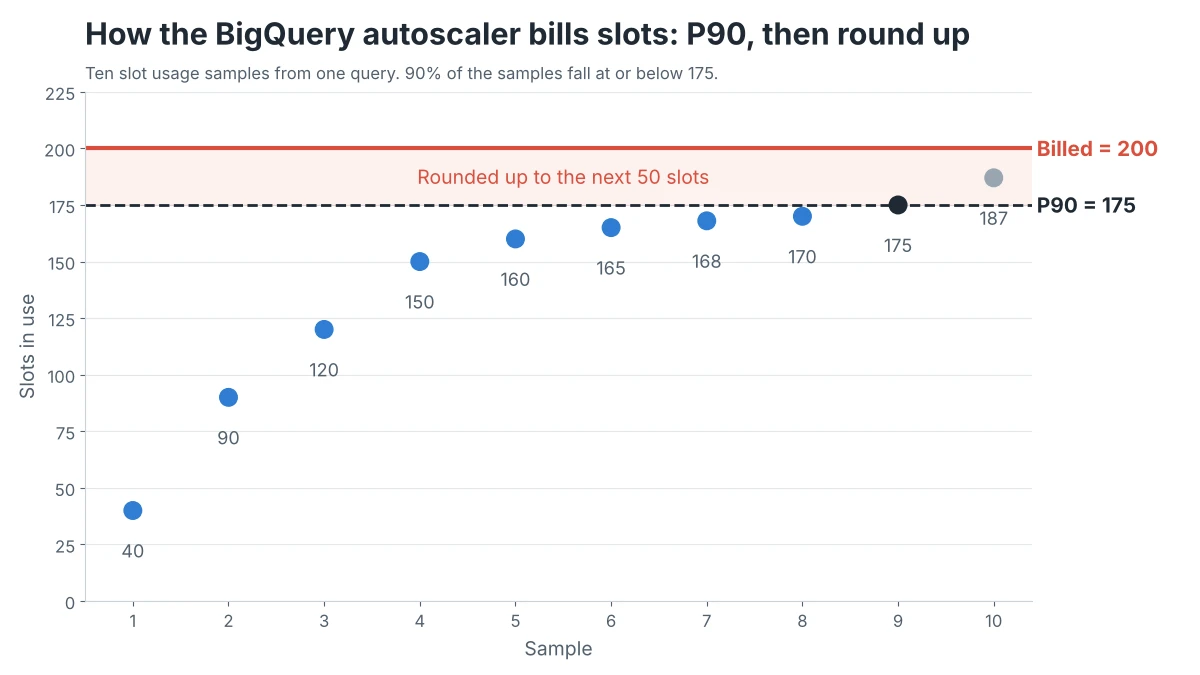
Note that this example assumes that the autoscaler kept the same amount of slots consistent for the entire execution. In reality, this will almost never happen thus the autoscaler would scale up and down in increments of 50 during the execution of a query. This is especially true for long-running queries and reservations that have high concurrent queries being run on them.
Since this always rounds up to the nearest 50 slots there are unused slots that are being billed for. In other systems this is often called idle capacity.
Why is It Almost Always Higher Than Expected?
The BigQuery autoscaler tries its best to predict how many slots will be needed to run a query based upon a very large number of factors and allocates that many slots in a reservation to run the query with. Unfortunately its ability to predict the future is about as good as mine when using a crystal ball at a Renaissance festival gift shop.
Many things can happen during runtime such as the cell (grouping of compute that BigQuery uses) can change in capacity or concurrent workloads, table sizes can change, an agentic workload can schedule 100 queries at the exact same time, or countless other events can occur that would change how compute capacity is used in BigQuery. Unfortunately for us many of these events are completely invisible to us, so we cannot predict how they will affect our workloads.
Due to this, and the fact that BigQuery in general is tuned to run jobs as fast as possible, the autoscaler has a tendency to overestimate the slots needed for jobs and allocates them to jobs. This means that your jobs will usually run much faster, but it also means that you are billed for these slots allocated. This means that the idle capacity between your usage and autoscaled slots is being billed but not used.
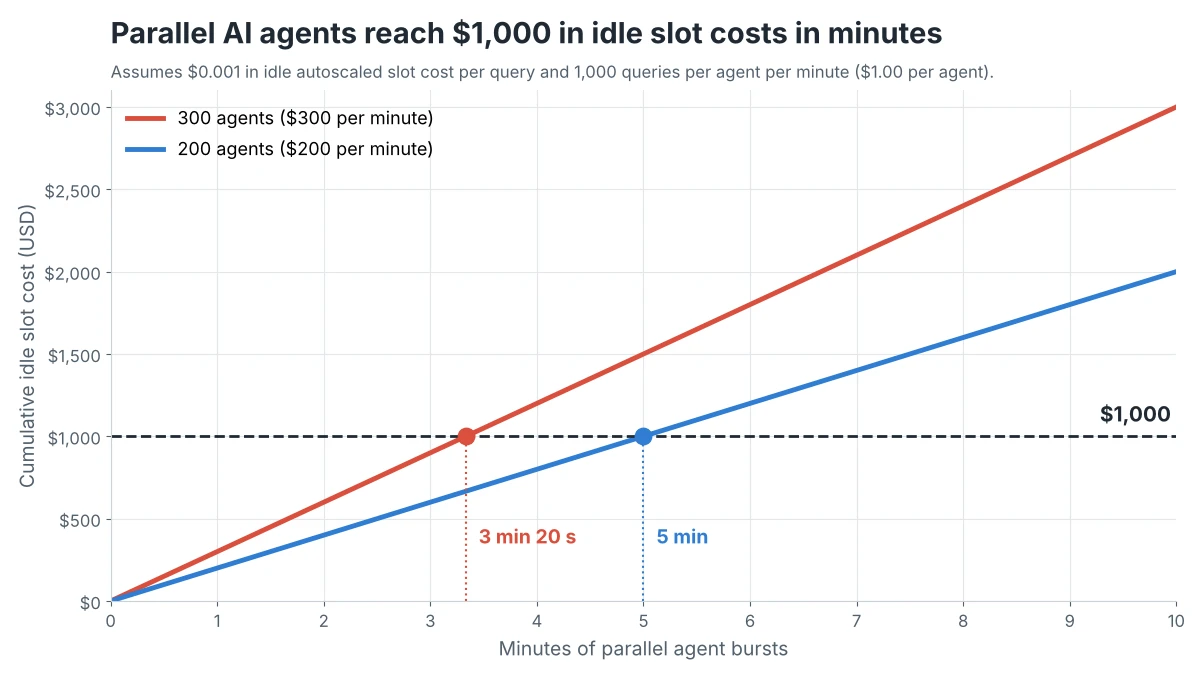
Generally this is only around $0.001 per query, so it doesn’t sound like a lot and let’s be honest it isn’t. But we are now in the age of AI where a single agent can easily fire up 1,000 queries in a minute that may only run for a few seconds at most, and that $0.001 per query becomes $1.00 per agent burst, every single minute it runs. Now picture a team of 20 people, each with 10 to 15 agents running in parallel. That’s 200 to 300 agents bursting at the same time, or $200 to $300 in idle slots every minute they run. Just a few minutes of that a day breaks past the $1,000 mark. It can add up very fast.
This is especially true due to a concept I call the “Short Query Tax” which is caused by the default behavior of an Editions reservation.
What is the Short Query Tax?
The Short Query Tax is the money you pay for idle autoscaled slots during BigQuery’s 60 second minimum billing period. A query that runs for 10 seconds is billed for a full 60, so you pay for 50 seconds of slots that do nothing.
In the past in a couple webinars and conference talks I coined the term “Short Query Tax,” which ironically Gemini came up with and I reused. This term caught on with a number of FinOps professionals when talking about BigQuery Editions and autoscaling costs.
By default, when a reservation autoscales slots for jobs it bills you for those slots for a minimum period of 60 seconds. So a single query running on a reservation for 10 seconds would be billed for its autoscaled slot usage for 60 seconds, thus you would be paying for 50 seconds of idle usage. If multiple queries are running in parallel or subsequently the same premise goes where you are billed for a minimum 60 seconds of autoscaled usage, but it would be less since the queries will take up more of that minimum time.
Sometimes a picture is worth a thousand words, so here is a simplified version of what I showed in my Google Next 2026 talk on BigQuery cost optimization:
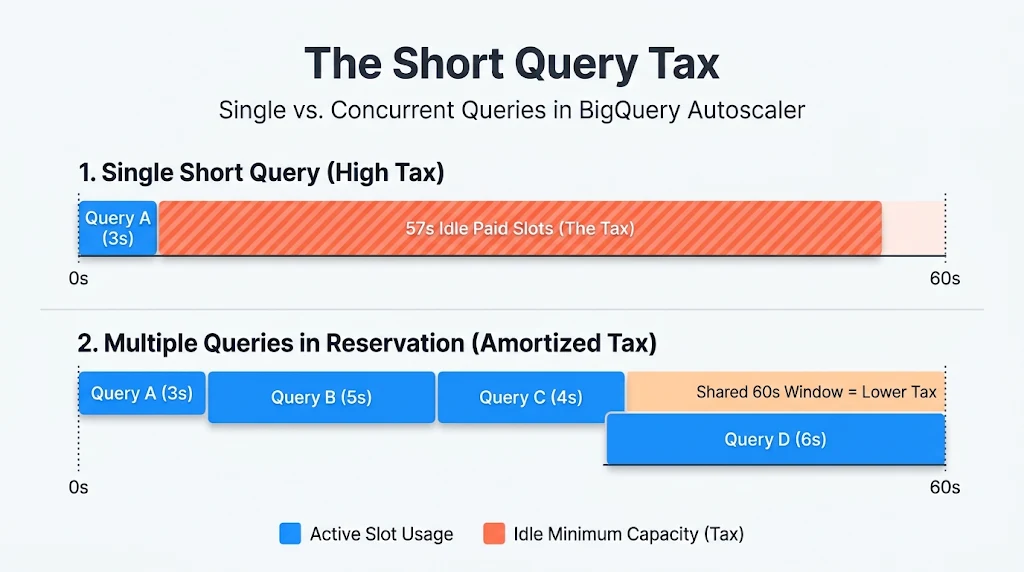
There are two solutions to this: Fluid Scaling and balancing usage. Fluid Scaling is covered below and is the recommended solution. The other solution is to orchestrate your jobs to run in parallel or in series so that you minimize or eliminate this 60 second minimum. This ensures that your slot usage is as close to or over the 60 second window thus you aren’t paying for idle slots.
What is Fluid Scaling?
Fluid Scaling is a reservation setting that replaces the 60 second minimum on autoscaled slots with per-second billing. It is turned off by default and can be enabled on a per-reservation basis. See Google’s guide to enabling Fluid Scaling.
This feature has an interesting, and in hindsight a turbulent, history that I was able to uniquely experience with my deep roots into the BigQuery ecosystem.
It was initially a feature that was hinted at in multiple public outings by BigQuery leadership over the first year Editions was out then it was in a very secretive private preview for over a year before being announced in the keynote at Google Next 2026. It was announced as “coming soon” on that day, April 22, 2026, and was being heralded by customers that used it in the private preview as very effective across social media at the time since an embargo on discussions was lifted. Documentation for it was silently released around June 1, 2026 stating it was available, but it wasn’t till June 3, 2026 that it was enabled officially and it appeared on the BigQuery release notes.
Google touts that this can save at least 30% on BigQuery Editions autoscaling costs, which was very accurate in my experiences as well.
To show the difference it makes here is a quick pricing example:
An agent fires 480 short queries a day on an Enterprise reservation with a baseline of 0. Each query runs for 8 seconds and is billed at 100 slots (70 slots at P90, rounded up). At $0.06 per slot-hour (US region, as of November 2026):
| Billed per query | Cost per day | |
| No Fluid Scaling | 60 seconds × 100 slots | $48.00 |
| Fluid Scaling Enabled | 8 seconds × 100 slots | $6.40 |
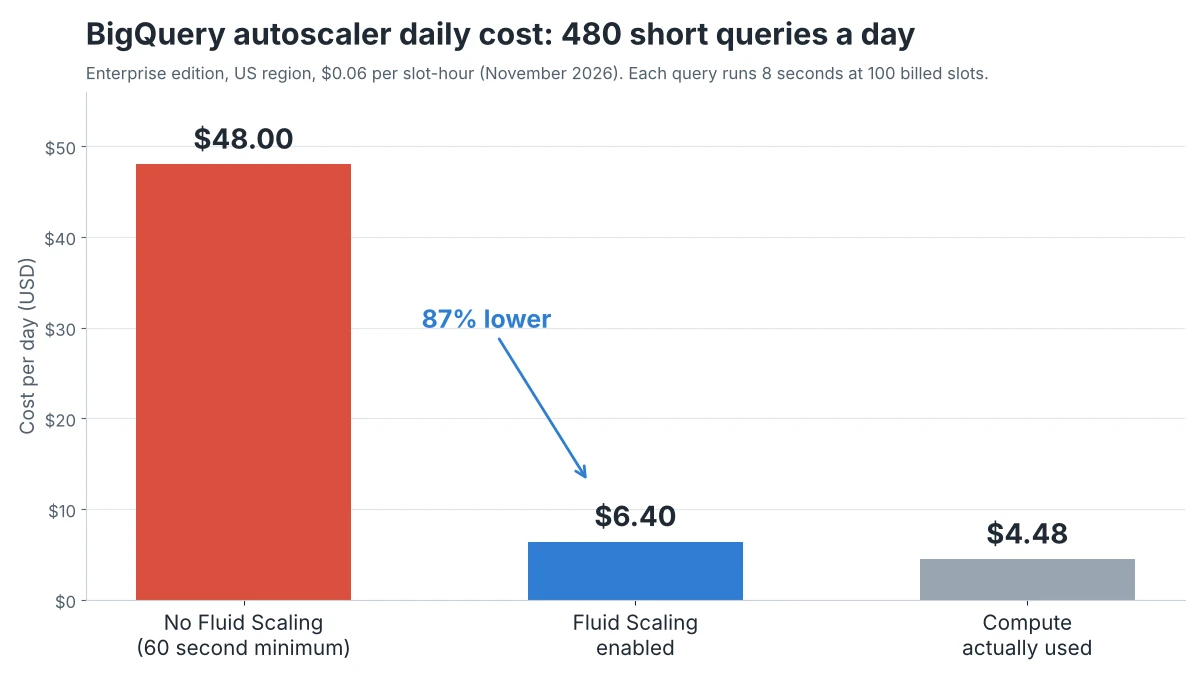
Same queries and same results with 87% less on the bill. The queries only used $4.48 of compute, so even with Fluid Scaling, the 50 slot round-up still costs you $1.92 a day.
How Do I Find My Autoscaled Cost?
There have been a few different methods of calculating your autoscaled costs, albeit each had different degrees of accuracy and difficulty calculating. The difficulty is that by default Google will bill all of the compute used by projects to the admin project hosting the reservations and not to the individual projects that actually use that compute.
On November 9, 2026, Google released Compute Cost Attributions into public preview. This allows you to look at the project-level compute costs and determine baseline and autoscaling compute costs. Note this is off by default, so you must enable it. See Google’s guide to enabling compute cost attribution.
After using it, this is the way I recommend doing this going forward as it is MUCH easier and cheaper than the methods I have written about and advised customers to use in the past for tracking per-project compute costs.
Is There a Way to Reduce My Cost Per Autoscaled Slot?
Since autoscaling is directly tied to the amount of usage, the obvious first way to reduce costs of autoscaled slots is to use less of them. This answer is very obvious and is generally done by reducing the max slot value on a reservation, but in the real world reducing this reduces performance and may elongate the times of critical workloads which is not an option.
Since workloads are always increasing, it’s generally not an option to reduce that usage. Thus the other option is to do a slot commitment. Wait, you might think those are for baselines not autoscaled slots. There is a nifty little set of priorities around slots that Google doesn’t publish in the docs. When autoscaling and there are committed slots that are not tied to a baseline (or are idle and idle slot sharing is turned on) those are used first by the autoscaler.
So yes you can purchase a 1 or 3 year slot commitment and not tie those slots to a baseline so that they are used by the autoscaler. If considering doing this just remember that you are paying for that commitment 24/7, so I would recommend ensuring you are autoscaling 24/7 or you are using them in a baseline, which again implies a 24/7 usage as well, then let them be shared as idle slots to the autoscaler.
The priority of slot consumption in the autoscaler is as follows:
| 1 | Committed slots not assigned to a baseline |
| 2 | Idle slots covered by a commitment that are assigned to a baseline and idle slot sharing is enabled |
| 3 | Idle slots not covered by a commitment (PAYG) that are assigned to a baseline and idle slot sharing is enabled |
| 4 | Traditional PAYG slots |
The last method goes along with this priority table above: reduce your maximum slot values and utilize idle slots from other reservations inside of a reservation group. This one is a bit tricky as it assumes you have excess capacity available in the same region, same admin project, and same Edition.
In order to do this you will group reservations into logical groupings and assign those to the same reservation group then ensure idle slot sharing is enabled on each reservation in the group. This allows you to pool up autoscaled slots to a maximum value for certain workloads and set a hard maximum. Beware though this can cause performance issues if the idle slots get used and starve other reservations in the grouping.
When Does This Not Apply?
Not every workload hits these costs, and not every fix pays off. In my experience, these are the main exceptions:
- On-demand pricing. You pay per TiB processed, so none of the autoscaler billing in this post applies to you.
- Baseline covers your workload. If queries rarely exceed your baseline, the autoscaler rarely kicks in. Focus on baseline rightsizing instead.
- Large, long-running queries. The 60 second minimum barely registers on a 30 minute query. Rounding up 49 slots matters on a 100 slot allocation, not a 2,000 slot one.
- Fluid Scaling already enabled. The Short Query Tax is gone, but the round-up to 50 slots remains.
- Spiky or business-hours workloads. A slot commitment bills 24/7, so if you only autoscale part of the day, pay-as-you-go is usually cheaper.
- Reservations that peak together. Idle slot sharing only helps when other reservations in the group have spare capacity at the same moment in the same region, admin project, and Edition.
FAQs
Why doesn’t my autoscaled bill match the slot usage in INFORMATION_SCHEMA.JOBS?
The JOBS view reports the slots your queries consumed, while billing reports the slots the autoscaler allocated. total_slot_ms counts only the slot time your queries actually used. The autoscaler bills its full allocation, rounded up to 50 slots, with a 60 second minimum unless Fluid Scaling is on. To find the difference, compare autoscale.current_slots in RESERVATIONS_TIMELINE with period_slot_ms in JOBS_TIMELINE over the same minutes. That gap is your idle capacity.
Why am I paying for autoscaled slots when my baseline should cover my workload?
Averages hide peaks. A reservation with a baseline of 100 that averages 80 slots can still burst to 110 when queries overlap. Those 10 extra slots trigger the autoscaler, which bills at least 50 slots, and without Fluid Scaling it bills them for at least 60 seconds. Check peak concurrency in JOBS_TIMELINE, not average usage, before deciding your baseline is big enough.
Will making my queries faster lower my autoscaler bill?
Not always. Without Fluid Scaling, a query you speed up from 50 seconds to 10 seconds is still billed for 60 seconds of autoscaled slots, so the runtime savings never reach your bill. Cutting total work, for example with better partition pruning, can drop the allocation by a 50 slot increment and pays off more reliably. With Fluid Scaling enabled, runtime improvements translate directly into savings.
Do failed or cancelled queries add to my autoscaler bill?
Yes. The autoscaler bills for the slots it allocated, not for results returned. A query that runs for 40 seconds and then fails, or is cancelled by a user or agent, is billed like any other job. Without Fluid Scaling, that includes the 60 second minimum. Agents that retry failed queries in loops can quietly multiply autoscaled cost, so check error_result in JOBS alongside slot usage.
Conclusion
Your BigQuery autoscaler bill runs high because it bills slots that are allocated, not slots that are used. Every query rounds up to the nearest 50 slots, and without Fluid Scaling every query is billed for at least 60 seconds. For short, frequent queries, that idle capacity can be most of your bill.
The fixes are mostly settings: enable Fluid Scaling, batch short queries, and tune your baseline and max slots. Then use Compute Cost Attribution to confirm the savings.
If you want to know how much of your bill is idle capacity, book a free BigQuery cost analysis with Yuki.