TL;DR: There’s no direct conversion between On-Demand ($6.25 per TiB processed) and Enterprise Edition ($0.06 per slot-hour in US/EU), so the reliable way to choose is to price your own query history both ways. Editions usually wins for steady, high-volume workloads and loses for sporadic, spiky ones. If Editions comes out cheaper, set your baseline at the P10 of per-minute slot usage (rounded down to the nearest 50) and your autoscaler max at the P90 (rounded up to the nearest 50, minus the baseline). Turn on fluid scaling as soon as you create the reservation, since it removes the one-minute billing minimum that drives much of Editions’ cost.
At some point, most organizations using BigQuery must decide whether to stay on the default On-Demand billing model or move to Editions, the capacity-based model. At Yuki, we automate this decision for our customers at the level of each individual query, because there’s no simple conversion between the two: On-Demand charges for the bytes your queries scan, while Editions charges for the slot time they consume, so 25 TiB processed in a month doesn’t translate to a 500-slot reservation or any other fixed number. On top of that, no two organizations have the same usage patterns, so the right choice depends on how your workloads actually behave. For those who want to understand what goes into that decision or run the numbers themselves, this article walks through a simplified version that makes the choice for an entire workload, using your historical usage to estimate whether Editions will save you money and, if it will, the two key reservation settings: the baseline and the maximum slot count.
What Does This BigQuery On-Demand vs Editions Comparison Assume?
Since there’s no direct conversion between the two billing models, the decision comes down to analyzing how your BigQuery environment actually uses compute. To keep this approach simple, it makes a few assumptions.
First, all current BigQuery usage runs On-Demand in projects in the same region. Second, it uses Enterprise Edition for the calculations, since it’s the edition that most closely matches the features available with On-Demand. In many cases Standard Edition is a better fit for price and features, which is covered later in this article.
Because this is a simplified, first-time migration model, it doesn’t cover more advanced topics such as concurrency, queuing, using multiple editions, or assigning different workloads to separate reservations.
Why Is BigQuery On-Demand vs Editions Pricing Hard to Compare?
Prior to Editions being released there was a model called flat-rate billing, which was exactly as it sounds like: you paid a flat-rate for compute on BigQuery. In this model you paid for chunks of 100 slots and paid a flat fee. In this case to match On-Demand, you calculated this flat fee times 20 to match the 2,000 slots On-Demand gives you and that was the break-even point.
Editions replaced that fixed cost with a variable one. A reservation now has a baseline and a maximum slot count, an autoscaler that adds and removes slots in 50-slot increments as demand changes, and a one-minute minimum billing period for scaled slots. As a result, the cost of Editions depends not just on how much compute you use, but on when and how unevenly you use it. There’s no formula that converts the bytes your queries scan into the slot time they’ll consume, so instead we approximate the right settings from your historical usage.
The primary variables we have to consider in this math are these:
- Minimum Slots Used
- Maximum Slots Used
- Average Slot Usage
- Bytes Processed and Billed by Queries
- Region (for determining the exact cost)
The rest of this article uses three equations. The first shows whether Editions is a good fit. If it is, the second sets the baseline (minimum) slot count and the third sets the maximum. Many other factors can come into play, but these three are the place to start.
There are two huge caveats, which are why this isn’t seen everywhere, including Google’s sample source code:
- The autoscaler’s general behavior is documented, but exactly how it will respond to a specific workload can’t be predicted precisely. Usage recorded under On-Demand won’t play out identically under a reservation.
- These calculations use per-minute averages of slot usage, which smooth out short spikes, and On-Demand usage is limited to roughly 2,000 slots, which can hide true peak demand. The results are a well-grounded starting point, not an exact prediction.
How to Calculate the BigQuery On-Demand vs Editions Break-Even Point
All calculations in this article use pricing for the US and EU regions, since these are the most commonly used locations for BigQuery. If your data is in a different region, check the BigQuery pricing page and substitute the rates for your region.
The first calculation answers whether Editions makes sense at all for the workload, by comparing what you paid under On-Demand with what the same usage would have cost on Enterprise Edition.
Both sides of the comparison come from your query history. On the On-Demand side, it’s the total data billed by your queries. On the Editions side, it’s built from slot usage over time: the total slot time consumed by all queries in each second or minute. The per-minute version, Slots(m), is also used to calculate the baseline and maximum slot counts later in this article.
Slots(m) = Σ slot ms in minute m / 60,000 (ms per minute)
On-Demand Cost = Σ TiB billed × $6.25
Editions Cost = Σ slot-hours billed × $0.06
Estimated Savings = On-Demand Cost − Editions Cost
A quick note, how slot-hours are billed depends on the reservation’s scaling mode. By default, the autoscaler adds slots in 50-slot increments and scales them for at least one minute before scaling down, so every scale-up is billed for at least a full minute. With fluid scaling enabled, BigQuery still scales in 50-slot increments but adjusts capacity second by second, with no minimum duration.
Here is what should be known about the different autoscaling modes:
- Standard autoscaling: takes the highest usage in each minute, rounds it up to the nearest 50 slots, and bills it for the full minute.
- Fluid scaling: takes the usage in each second, rounds it up to the nearest 50 slots, and bills it for that second only.
A positive result means Enterprise Edition would likely have cost less than On-Demand over the same period, and a negative result means it would likely have cost more. The fluid scaling estimate will always be lower, and the difference between the two shows how much enabling fluid scaling is likely to save. Because those savings can be significant, especially for workloads with many short queries, enabling fluid scaling is highly recommended once your reservation is set up. If even the fluid scaling estimate is negative, Editions is unlikely to save money for this workload.
This calculation doesn’t apply a maximum slot cap, which is covered later, so it shows the cost of serving all of your historical demand. Setting a maximum will lower Editions costs somewhat, in exchange for slower queries during peaks. It also ignores the On-Demand free tier of 1 TiB per month, which only makes a small difference for most organizations.
The SQL located here shows this. In the case that this is needed for multiple projects that will be grouped together in a single Editions reservation later then uncomment the optional section of the code for this and update with your project name.
In the process of doing this calculation you may realize that some queries would run cheaper on On-Demand and others on Editions. This right here is the basis behind Yuki’s BigQuery Cost Optimization Solution and is one of the largest drivers in reducing costs by routing your queries to the best billing model.
How to Calculate BigQuery Baseline Slots
If the above calculation didn’t scare you away from Editions there are a few choices that must be made, the first of which is the minimum slot count, which is more commonly known as your baseline.
Baseline slots are billed continuously, 24/7, whether or not queries are using them. Without a capacity commitment, they’re billed at the same pay-as-you-go rate as autoscaled slots, so a baseline only saves money when it’s in use nearly all the time. The goal is to choose a baseline your workload keeps busy as close to 100% of the time as possible, and let the autoscaler handle everything above it. As a general rule, if your usage isn’t consistently above 50 slots, a baseline of zero is the right choice as determined by the formula and SQL below.
The formula is based on per-minute slot usage: the total slot time consumed by all queries in each minute, divided by 60 seconds, which gives the average number of slots in use during that minute. Over a 30-day period, this produces one value for every minute, and the baseline looks at the low end of those values:
Slots(m) = Σ slot ms in minute m / 60,000 (ms per minute)
Baseline Slots = FLOOR( P10(Slots(m)) / 50 ) × 50
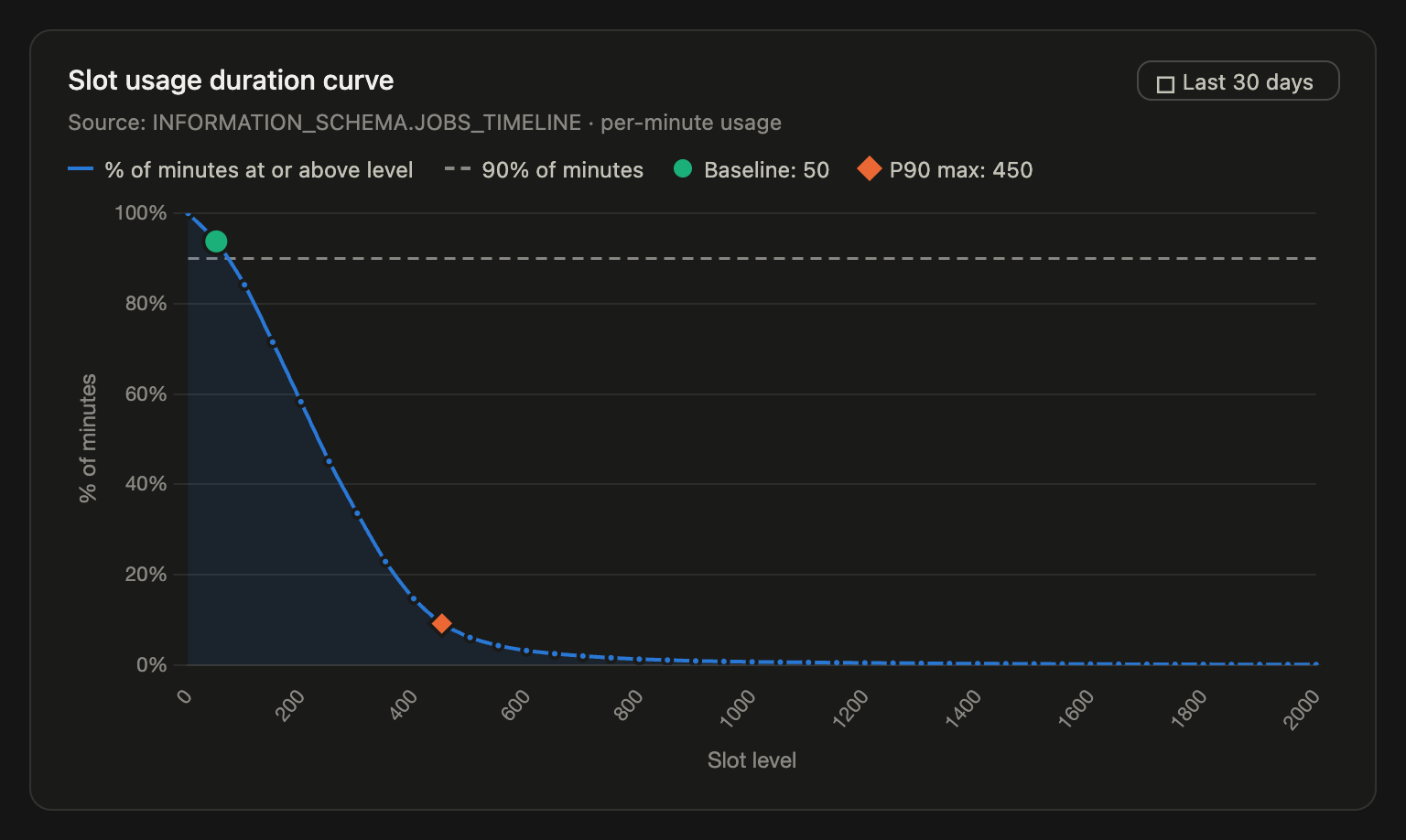
This takes the slot level your usage stayed at or above for 90% of minutes in the time period, rounded down to the nearest 50. Rounding down rather than up ensures the baseline slots are almost always in use. Minutes with no running queries count as zero slots, which keeps the result from being overstated.
This may be easier to understand looking at the SQL code doing this located here. Again there are some lines that can be uncommented in the code to allow this to look at multiple projects at once.
For example, if usage stayed between 50 and 200 slots for 97% of minutes over the last 30 days, the P10 value falls in that range, and the baseline would be 50. If usage was at 0 for about half of all minutes and around 200 for the other half, the P10 value is 0, and the baseline would be 0. A baseline of zero is perfectly acceptable; it simply means the reservation autoscales all of the time.
It’s generally easiest to visualize this to understand it, this query produces a duration curve showing the percentage of minutes your usage was at or above each 50-slot level. Plot it in Data Studio or a Jupyter notebook: the baseline is the highest level that stays at or above 90% of minutes.
How to Calculate BigQuery Max Slots for Autoscaling
The next value to determine is the maximum slot count value. This value is the maximum number of slots that the autoscaler will scale up to beyond the baseline, so it is essential for cost controls while also ensuring that performance doesn’t suffer. Slots that the autoscaler adds above your baseline are charged at the pay-as-you-go rate.
This formula is much easier and utilizes percentiles of slot usage choosing a P90 value of your per-minute slot usage to set it at a reasonable amount for cost-savings while giving room to increase the slots in known amounts as needed. Since the maximum is the number of slots the autoscaler adds beyond the baseline, the baseline will be subtracted from the calculated value below.
Here is the formula for this:
Max Reservation Size = CEIL( P90(Slots(m)) / 50 ) × 50 − Baseline SlotsEnter this as “Max reservation size” in the console. If you create the reservation with SQL, bq, or Terraform, the autoscale_max_slots setting counts only slots above the baseline, so subtract the baseline: Max Reservation Size − Baseline Slots.
The SQL code to perform this is located here, which also contains some of the multiple project lines that can be uncommented.
For example, if the P90 per-minute usage is 437 slots and the baseline is 50, the result rounds up to 450, and the autoscaler maximum is 400.
As noted above the P90 value is used to balance cost and performance. For performance-sensitive workloads such as BI dashboards, use P95 or P99 instead, accepting higher costs in exchange for less throttling. Avoid sizing to P100 (the absolute peak). In most environments, typical usage sits well below the peak, and the P100 value is usually driven by a small number of inefficient queries, such as unfiltered “SELECT *” statements that can push usage toward the on-demand limit of around 2,000 slots. These outliers rarely show up at P99. Sizing the reservation to them lets a single poorly written query trigger a large autoscaling event, and because the autoscaler bills in 50-slot increments and takes time to scale back down, these bursts cost more than the query’s actual usage. A lower cap lets those queries finish more slowly without driving up costs, and the queries themselves are better addressed through optimization.
BigQuery On-Demand vs Editions: A Worked Example
To see how the three calculations fit together, take a hypothetical analytics team running entirely On-Demand in the US region. The numbers below come from a 30-day window of query history (43,200 minutes, or 720 hours).
Step 1: On-Demand cost. The team’s queries billed 1,200 TiB over the period.
On-Demand Cost = 1,200 TiB × $6.25 = $7,500
Step 2: Editions cost. Summing per-minute slot usage gives 72,000 slot-hours actually consumed. Rounding that usage up to 50-slot increments the way the autoscaler bills it produces two estimates:
Standard autoscaling: 95,000 slot-hours × $0.06 = $5,700
Fluid scaling: 80,000 slot-hours × $0.06 = $4,800
Step 3: Estimated savings.
Standard autoscaling: $7,500 − $5,700 = $1,800 per month
Fluid scaling: $7,500 − $4,800 = $2,700 per month
Both results are positive, so Enterprise Edition is likely cheaper. Fluid scaling adds another $900 per month, about 50% more savings. The gap comes almost entirely from the one-minute billing minimum.
Step 4: Baseline. The P10 of per-minute slot usage is 70 slots. Usage stayed at or above 70 slots in 90% of minutes.
Baseline Slots = FLOOR(70 / 50) × 50 = 50
These 50 slots run around the clock and cost 50 × 720 hours × $0.06 = $2,160 per month. They are busy in more than 90% of minutes, so very little of that spend is wasted.
Step 5: Maximum. The P90 of per-minute slot usage is 212 slots.
Max Slots = CEIL(212 / 50) × 50 − 50 = 250 − 50 = 200
Result: Create an Enterprise Edition reservation with a 50-slot baseline and a 200-slot autoscaling maximum, then enable fluid scaling. The reservation can reach 250 slots at peak, which covers 90% of minutes at full speed. The rare spikes above run more slowly instead of triggering expensive scale-ups. If the workload doesn’t need Enterprise features, Standard Edition would cut the fluid scaling estimate by about a third, to roughly $3,200 per month.
Is BigQuery Standard Edition Cheaper Than Enterprise Edition?
As mentioned above all of the formulas and SQL all use Enterprise Edition, which is the Edition with feature parity with On-Demand workloads, but in many cases it is not required and Standard Edition can be used instead for the same performance but at a lower cost.
Since Standard Edition is about 33% less expensive ($0.04 vs $0.06 per slot-hour in the EU and US regions) this can be a very substantial savings.
There are some caveats to Standard Edition in that it is missing some functionality from On-Demand and Enterprise Edition. The table below shows a good summary of these and the pricing differences. Google provides a full feature matrix here of each Edition.
Here is a quick summary of Editions vs On-Demand as of the time of this writing (11/2026):
| On-Demand | Standard Edition | Enterprise Edition | |
| Price (US/EU) | $6.25 per TiB | $0.04 per slot-hour | $0.06 per slot-hour |
| Billing unit | Bytes processed per query | Slot-hours (1-minute minimum, or per-second with fluid scaling) | Slot-hours (1-minute minimum, or per-second with fluid scaling) |
| Max slots | ~2,000 per project (shared, not guaranteed) | 1,600 per reservation | Limited only by quota |
| Baseline slots | N/A | Not available (autoscaling only) | Yes |
| Key feature gaps | No reservations or workload management | No BI Engine, BigQuery ML, VPC Service Controls, cross-user caching, search/vector indexes, continuous queries, or creating materialized views; 10 reservations per admin project; 99.9% SLO | None vs. On-Demand for most workloads |
How Accurate Is the BigQuery Editions Cost Estimate?
These calculations are a well-grounded starting point, not a price quote, and each approximation pushes the results in a predictable direction.
The On-Demand cost is close to exact, since it comes from the same bytes-billed figure Google bills on. It doesn’t account for the 1 TiB free-tier per billing account, which is usually negligible for most organizations.
The Editions cost is an approximation of the autoscaler. In practice, the autoscaler reacts with a delay, can scale beyond what queries actually use, and bills in 50-slot increments. Under standard autoscaling, it also holds, and bills for, slots for at least a minute after each scale-up. This gap between billed and used slots means the Editions estimates tend to run low, especially for small, spiky workloads without fluid scaling. Leaving out a maximum slot cap partly offsets this, since capped spikes would run more slowly on fewer slots.
Finally, results are only as representative as the analysis window, thus treating the estimated savings as a range.
How to Set Up a BigQuery Editions Reservation and Fluid Scaling
After determining these values the next step is to set up the actual reservation, or not if On-Demand is a better fit, setting those values, and finally assigning the project, or projects, to the reservation.
Upon creating the reservation it is HIGHLY recommended to turn on Fluid Scaling for this newly created reservation as this will remove one of the largest cost drivers on Editions, which is the 1-minute minimum on queries.
Out of the hundreds of reservations I’ve worked with since fluid scaling launched earlier in 2026, enabling it raised costs for only one reservation, and that was due to very unusual workload behavior.
Lastly, because the above approach uses pay-as-you-go pricing with no commitments, moving is low-risk: compare your actual Editions charges against the estimates for the first few weeks, and if On-Demand turns out cheaper, remove the reservation assignment to switch back.
The approach in this article makes a single choice for your entire workload, based on how it behaved in the past. But as we noted at the start, no two workloads behave the same, and the same is true of individual queries: some are cheaper on On-Demand and others on Editions. That’s the decision Yuki automates. Our routing engine sends each query to whichever model is cheaper for it, so you get the best of both without running this analysis or revisiting it as your usage changes. Request a free cost analysis to see how much Yuki can save on your BigQuery costs.
FAQs
Is BigQuery Editions cheaper than On-Demand?
It depends on your workload. Editions usually wins for steady, high-volume usage, and On-Demand wins for sporadic or spiky usage, so run the break-even calculation on your own query history.
Can I use On-Demand and Editions at the same time?
Yes. Billing models are set per project, so you can move steady workloads to a reservation and leave the rest on On-Demand by routing queries to different projects.
How many slots does On-Demand provide?
Up to roughly 2,000 slots per project. They’re shared and not guaranteed, which can hide your true peak demand.
What is BigQuery fluid scaling?
It bills autoscaled slots per second instead of with a one-minute minimum. It lowers costs for almost every workload, so turn it on when you create your reservation.
Can I switch back to On-Demand if Editions costs more?
Yes. Remove the project’s reservation assignment, and its queries go back to On-Demand billing right away.